布局组件
主题使用 <Layout> 组件进行配置。您应该将配置选项作为 Layout 的 props 传递,例如:
import { Layout } from 'nextra-theme-docs'

export default function MyLayout({ children, ...props }) {
  return (
    <html lang="en">
      <body>
        <Layout
          sidebar={{ autoCollapse: true }}
          docsRepositoryBase="https://github.com/shuding/nextra/tree/main/docs"
        >
          {children}
        </Layout>
      </body>
    </html>
  )
}
每个选项的详细信息如下所示。
Props
页面映射
| Name | Type | Default |
|---|---|---|
pageMap | PageMapItem[]Page map list. Result of |
横幅
| Name | Type | Default |
|---|---|---|
banner | React.ReactNodeRendered |
导航栏
| Name | Type | Default |
|---|---|---|
navbar | React.ReactNodeRendered |
Toggle Visibility
You can toggle visibility of the <Navbar> on the specific pages by setting theme.navbar property in the _meta.js file:
export default {
  'my-page': {
    theme: {
      navbar: false // Hide navbar on this page
    }
  }
}
页脚
| Name | Type | Default |
|---|---|---|
footer | React.ReactNodeRendered |
Toggle Visibility
You can toggle visibility of the <Footer> on the specific pages by setting theme.footer property in the _meta.js file:
export default {
  'my-page': {
    theme: {
      footer: false // Hide footer on this page
    }
  }
}
搜索
| Name | Type | Default |
|---|---|---|
search | React.ReactNodeRendered | <Search /> |
文档仓库
设置文档的仓库 URL。它用于生成“编辑此页”链接、“反馈”链接,以及未找到页面 上的“报告损坏链接”。
| Name | Type | Default |
|---|---|---|
docsRepositoryBase | stringURL of the documentation repository. | "https://github.com/shuding/nextra" |
指定路径
如果文档位于 monorepo、子文件夹或仓库的不同分支中,您可以简单地将 docsRepositoryBase 设置为 app/(App Router)文件夹的根路径。例如:
<Layout docsRepositoryBase="https://github.com/shuding/nextra/tree/main/docs">
  {children}
</Layout>
然后 Nextra 将自动为所有页面生成正确的文件路径。
深色模式和主题
自定义网站的主题行为。
| Name | Type | Default |
|---|---|---|
darkMode | booleanShow or hide the dark mode select button. | true |
nextThemes | { attribute?: "class" | `data-${string}` | ("class" | `data-${string}`)[]; defaultTheme?: string; disableTransitionOnChange?: boolean; forcedTheme?: string; storageKey?: string; }Configuration for the next-themes package. | {
"attribute": "class",
"defaultTheme": "system",
"disableTransitionOnChange": true,
"storageKey": "theme"
} |
编辑链接
在页面上显示“编辑此页”链接,指向 GitHub(或其他位置)的文件 URL。
| Name | Type | Default |
|---|---|---|
editLink | React.ReactNodeContent of the edit link. | "Edit this page" |
要禁用它,您可以将 editLink 设置为 null。
反馈链接
内置反馈链接为用户提供了一种提交关于文档反馈的方式。
| Name | Type | Default |
|---|---|---|
feedback.content | React.ReactNodeContent of the feedback link. | "Question? Give us feedback" |
feedback.labels | stringLabels that can be added to the new created issue. | "feedback" |
feedback.link | stringFeedback link URL. By default, it’s a link to the issue creation form of the docs repository, with the current page title prefilled: example . |
要禁用它,您可以将 feedback.content 设置为 null。
I18n
| Name | Type | Default |
|---|---|---|
i18n | { locale: string; name: string; }[]Options to configure the language dropdown for the i18n docs website. | [] |
最后更新日期
显示页面的最后更新日期。这对于显示内容的时效性很有用。
| Name | Type | Default |
|---|---|---|
lastUpdated | React.ReactElementComponent to render the last updated info. | <LastUpdated /> |
Toggle Visibility
You can toggle visibility of the last update date on the specific pages by setting theme.timestamp property in the _meta.js file:
export default {
  'my-page': {
    theme: {
      timestamp: false // Hide timestamp on this page
    }
  }
}
导航
在内容底部显示上一页和下一页链接。这对于在页面之间导航很有用。
| Name | Type | Default |
|---|---|---|
navigation | boolean | { next: boolean; prev: boolean; }Enable or disable navigation link. | true |

<Layout
  navigation={{
    prev: true,
    next: true
  }}
>
  {children}
</Layout>
上面的代码也等同于 navigation: true。
Toggle Visibility
You can toggle visibility of the navigation on the specific pages by setting theme.pagination property in the _meta.js file:
export default {
  'my-page': {
    theme: {
      pagination: false // Hide pagination on this page
    }
  }
}
侧边栏
菜单折叠级别
默认情况下,侧边栏菜单在级别 2 时折叠。您可以通过将 sidebar.defaultMenuCollapseLevel 设置为不同的数字来更改它。例如,当设置为 1 时,每个文件夹将默认折叠;当设置为 Infinity 时,所有嵌套文件夹将默认展开。
如果 sidebar.autoCollapse 设置为 true,则不包含活动/焦点路由的所有文件夹将自动折叠到 sidebar.defaultMenuCollapseLevel 设置的级别。例如,如果 defaultMenuCollapseLevel 为 2,则顶级文件夹不会自动折叠。
自定义侧边栏内容
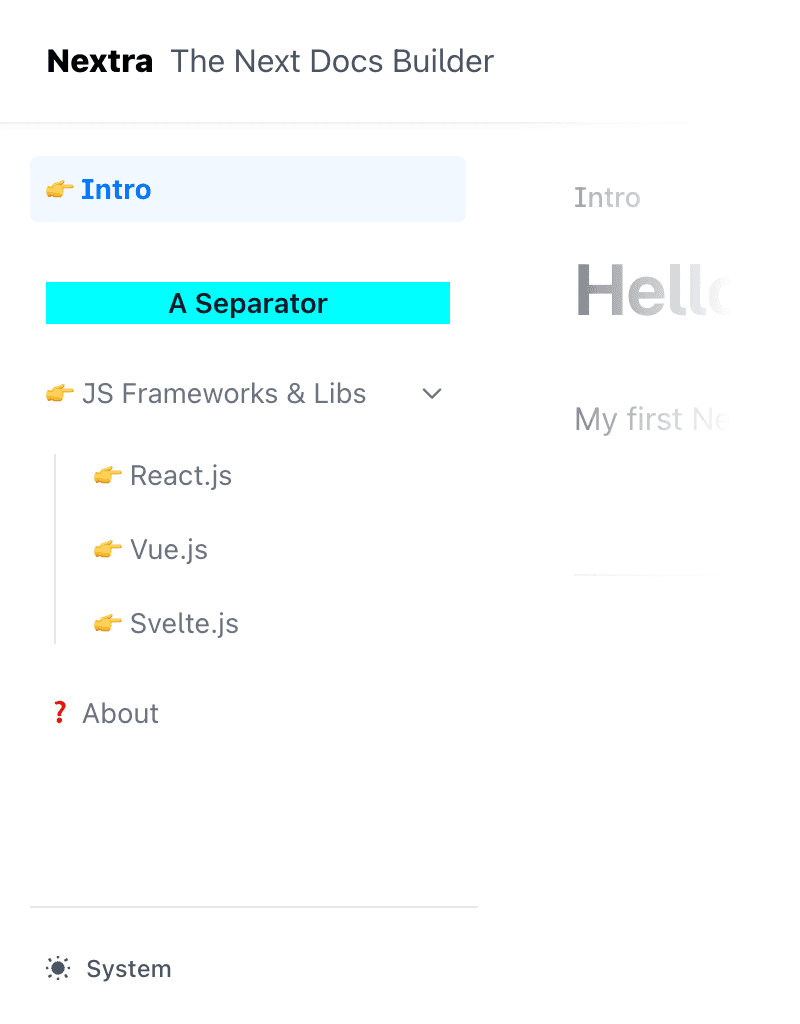
结合分隔符项目,您可以使用 JSX 元素自定义侧边栏内容的渲染方式:
export default {
  index: 'Intro',
  '--': {
    type: 'separator',
    title: (
      <div className="flex items-center gap-2">
        <MyLogo />
        {children}
      </div>
    )
  },
  frameworks: 'JS Frameworks & Libs',
  about: 'About'
}
Toggle Visibility
You can toggle visibility of the <Sidebar> on the specific pages by setting theme.sidebar property in the _meta.js file:
export default {
  'my-page': {
    theme: {
      sidebar: false // Hide sidebar on this page
    }
  }
}
使用 Front Matter 自定义侧边栏
此外,您可以使用 front matter 中的 sidebarTitle 属性自定义侧边栏标题:
---
sidebarTitle: Getting Started 🚀
---
侧边栏标题的优先级如下:
- 来自
_meta文件的非空标题。 - front matter 中的
sidebarTitle。 - front matter 中的
title。 - 从第一个
h1Markdown 标题派生的标题(例如# Dima Machina)。 - 如果以上都没有,则回退到页面文件名,按照The Chicago Manual of Style 格式化。
主题切换
| Name | Type | Default |
|---|---|---|
themeSwitch | { dark?: string; light?: string; system?: string; }Translation of options in the theme switch. | {
"dark": "Dark",
"light": "Light",
"system": "System"
} |
您可以自定义选项名称以用于本地化或其他目的:
<Layout
  themeSwitch={{
    dark: 'Темный',
    light: 'Светлый',
    system: 'Системный'
  }}
>
  {children}
</Layout>
目录 (TOC)
在页面右侧显示目录。这对于在标题之间导航很有用。
| Name | Type | Default |
|---|---|---|
toc.backToTop | React.ReactNodeText of back to top button. | "Scroll to top" |
toc.extraContent | React.ReactNodeDisplay extra content below the TOC content. | |
toc.float | booleanFloat the TOC next to the content. | true |
toc.title | React.ReactNodeTitle of the TOC sidebar. | "On This Page" |
浮动 TOC
启用后,TOC 将显示在页面右侧,并在滚动时固定。如果禁用,TOC 将直接显示在页面侧边栏中。
Toggle Visibility
You can toggle visibility of the <TOC> on the specific pages by setting theme.toc property in the _meta.js file:
export default {
  'my-page': {
    theme: {
      toc: false // Hide toc on this page
    }
  }
}